
WingOps is the operating system for your flight school.
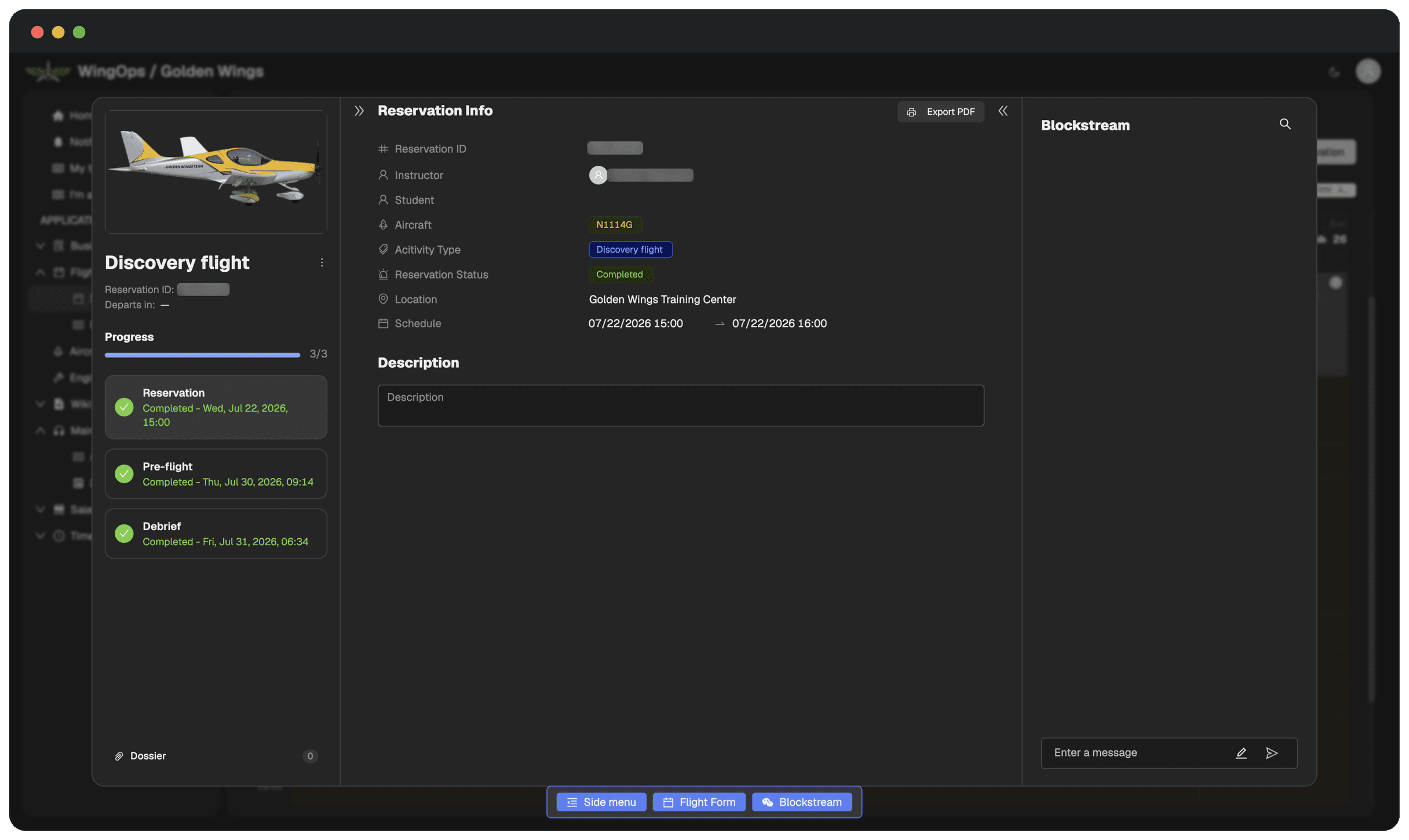
One system runs the whole operation: scheduling, aircraft and engine hours, maintenance, instruction time and safety briefs, and that is only part of it. Every flight is a single record that moves through three stages, from reservation to pre-flight to debrief, so nothing is filed twice and nothing is left open.
Why WingOps
Built at a flight school, not in a boardroom.
WingOps comes from Golden Wings Team, an authorized Bristell dealer at Waukegan National Airport, Illinois. We built it because we needed it. The schedule, the fleet, the briefs and the billing were living in four different places, and the spreadsheet in the middle was a person.
Golden Wings Training Center runs on it. Every screen on this page is the real thing, out of a real operation. The names are blurred. Nothing else is.

Run the day
See the week, book into it.
The calendar is where the day gets put together. Every reservation your school has made is on it, and new ones are booked from the same screen.
Live METAR for the field sits next to it, so nobody opens a second tab to find out whether the day is VFR.
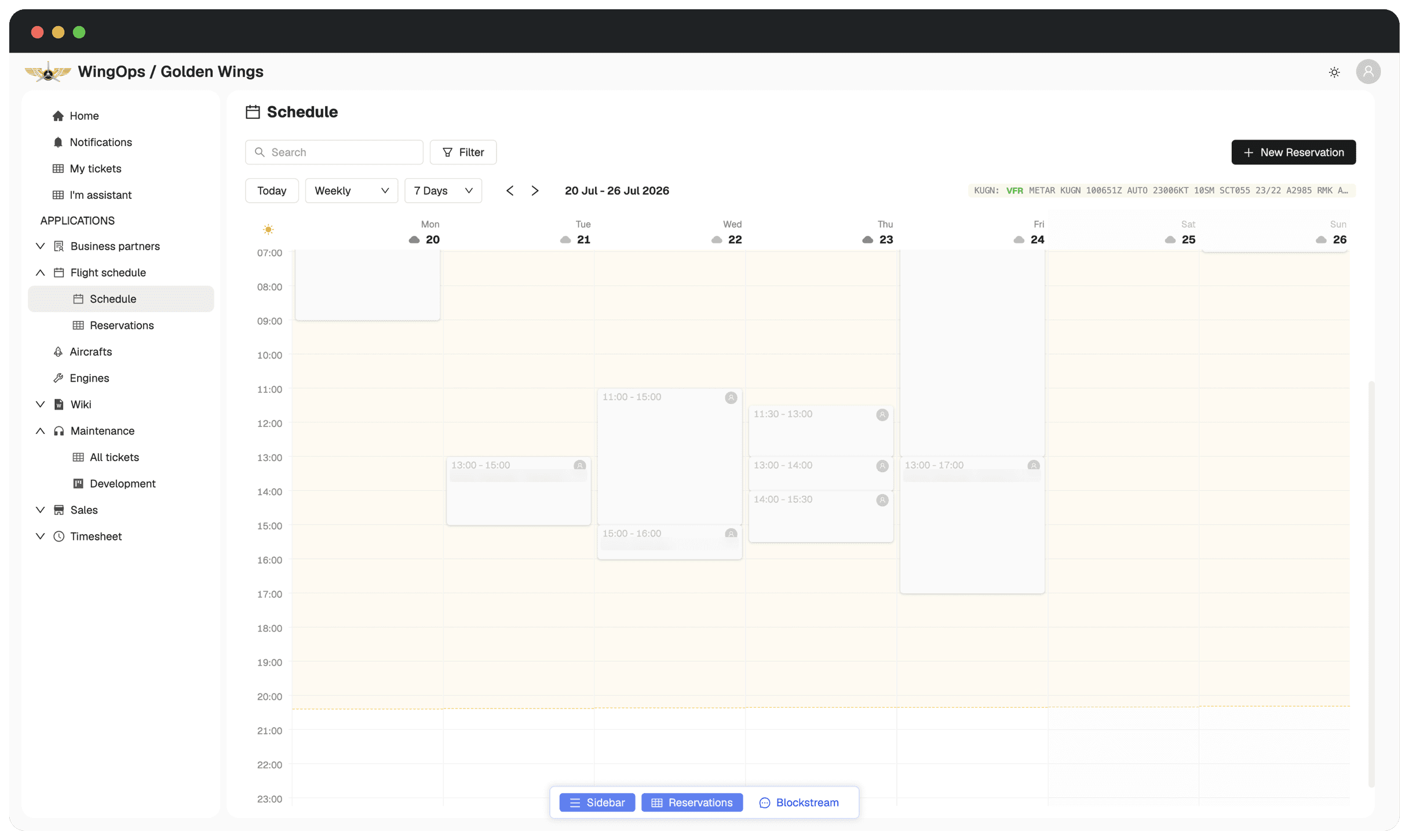
- Four ways to read the week
- Weekly, monthly, horizontal or vertical. Your dispatcher picks the one they think in; the flights underneath are the same.
- The weather sits on the grid
- Live METAR for the field, next to the schedule. Nobody opens a second tab to find out whether the day is VFR.
- Find the flight you meant
- Search by aircraft, pilot or date, then filter by status. No scrolling through a month to find one afternoon.
Reservation
Book the flight in one screen.
Aircraft, instructor, student, activity type and the slot, on one form. The status says where the booking stands without opening anything.
The reservation opens the record that the pre-flight and the debrief fill in later.
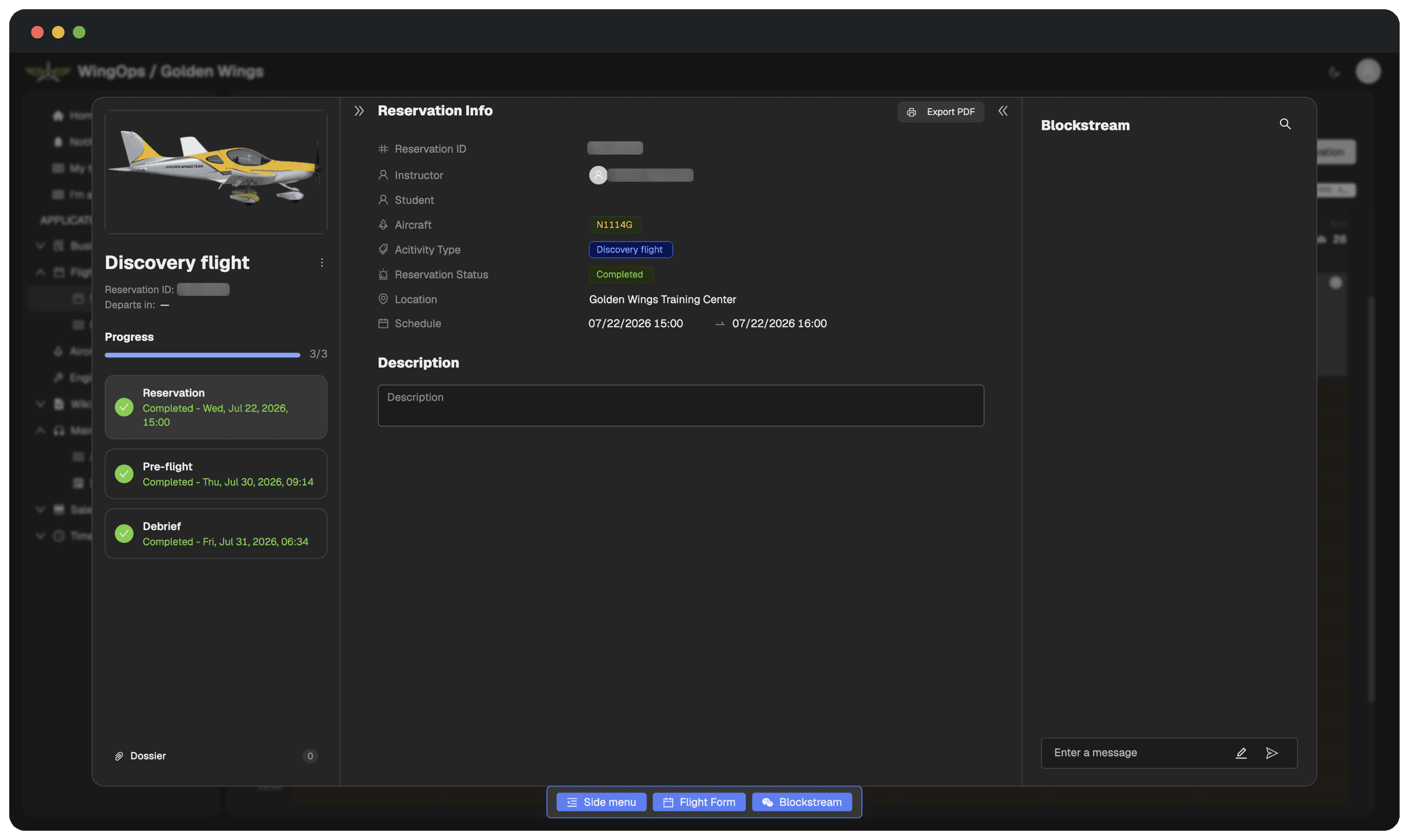
- Everything on one form
- Aircraft, instructor, student, activity type, location and the slot. Nothing lives in a second place.
- Status you can read at a glance
- Booked, completed or cancelled. Your dispatcher sees where it stands without opening the flight.
- Export the booking as PDF
- One document for the student, the instructor or the file, straight off the reservation.
Pre-flight
Release the flight, or send it back.
No flight leaves until somebody has looked at it. The risk assessment is filled in before the aircraft moves, and the score is on the record while the answers are still coming in.
The form opens from the record or goes out as a link, so the check happens at the aircraft and not at a desk an hour later. Whoever cleared the flight is on the record, with a time on it.
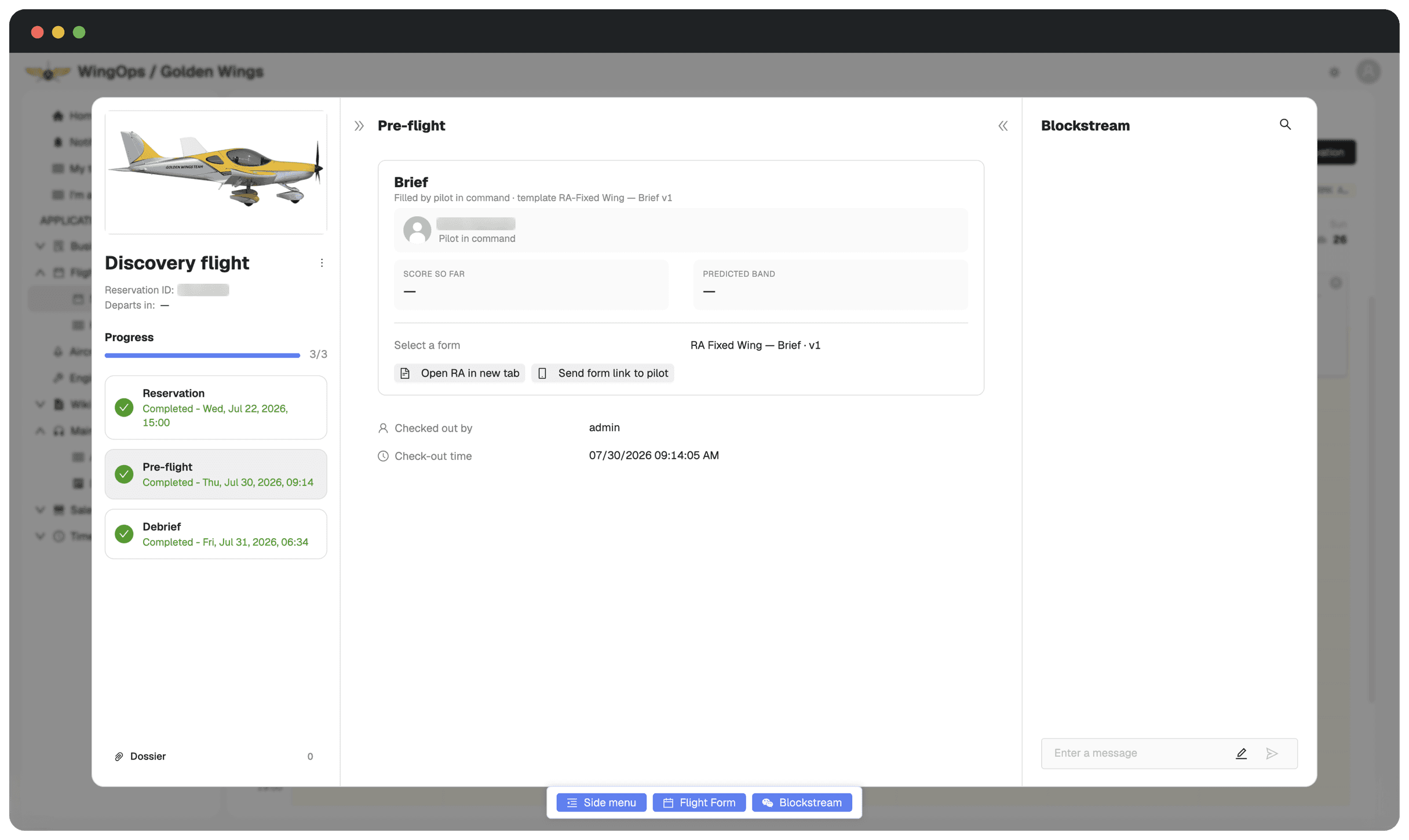
- The form opens from the record
- Open the risk assessment in a new tab, or send the link straight to your student. Nobody goes looking for a second system.
- Score so far, band predicted
- The record carries the number while your student is still answering, and the band that number lands in.
- Nothing goes out unchecked
- The stage cannot be checked out until the form is in. No flight leaves on somebody meaning to fill it in later.
Risk assessment
Score the risk before you fly.
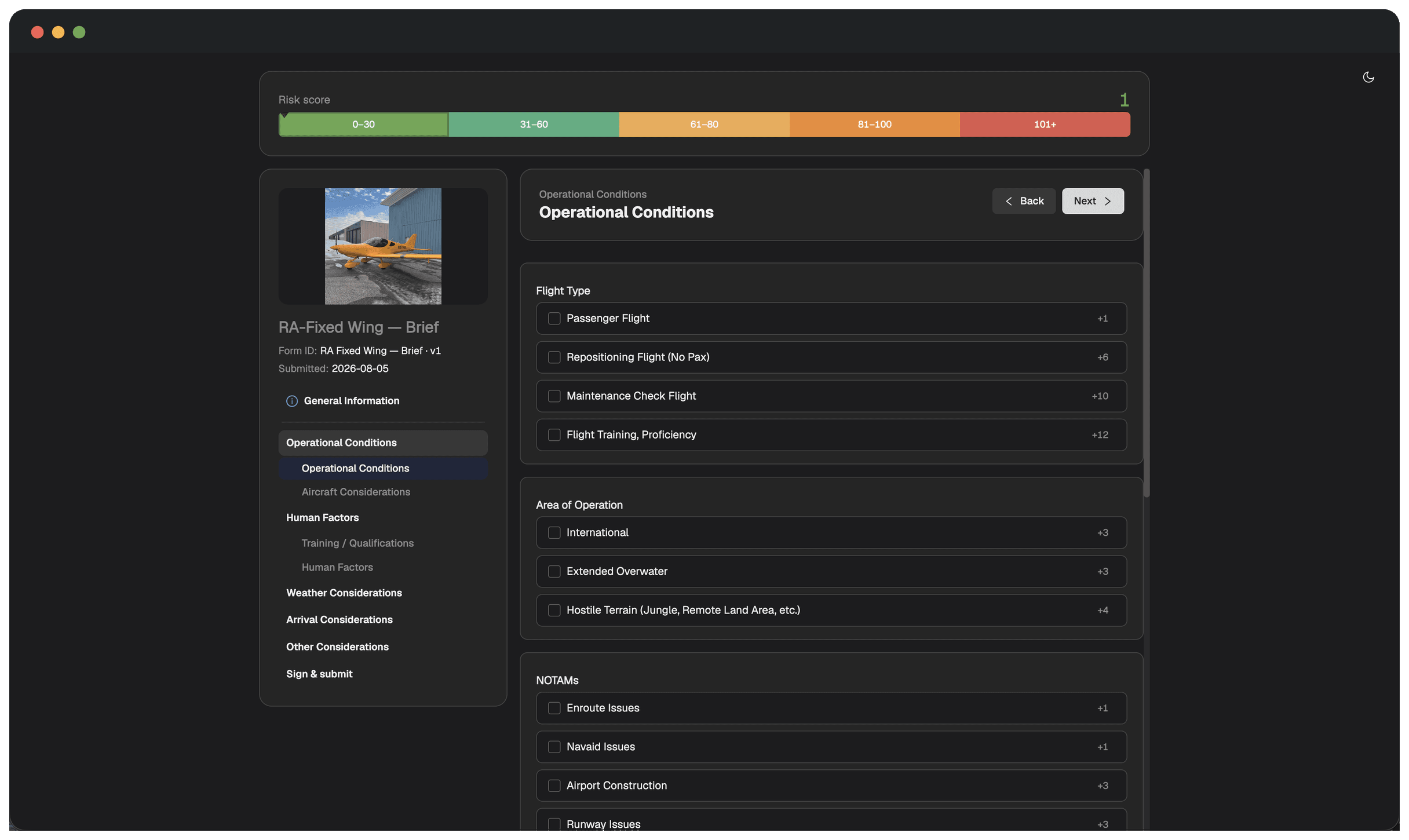
Every flight gets a number before it goes. Operational conditions, human factors, weather and arrival each carry their own weights, and the score adds up as the answers come in.
The band that number lands in is what decides whether the flight goes. Not a feeling at the desk, and not a form somebody files afterwards.
- Every answer carries a weight
- Flight training adds 12. An unattended field adds 8. The numbers are set by your school, not left to a gut call at the desk.
- The score builds as they answer
- Risk climbs while your student fills in the form, not after the flight is filed. Your instructor sees the number before approving.
- The band decides
- The band on the record is what says whether the flight goes. Your instructor reads it before the stage is checked out, not after the aircraft is back.
Form builder
Build the forms yourself, front to back.
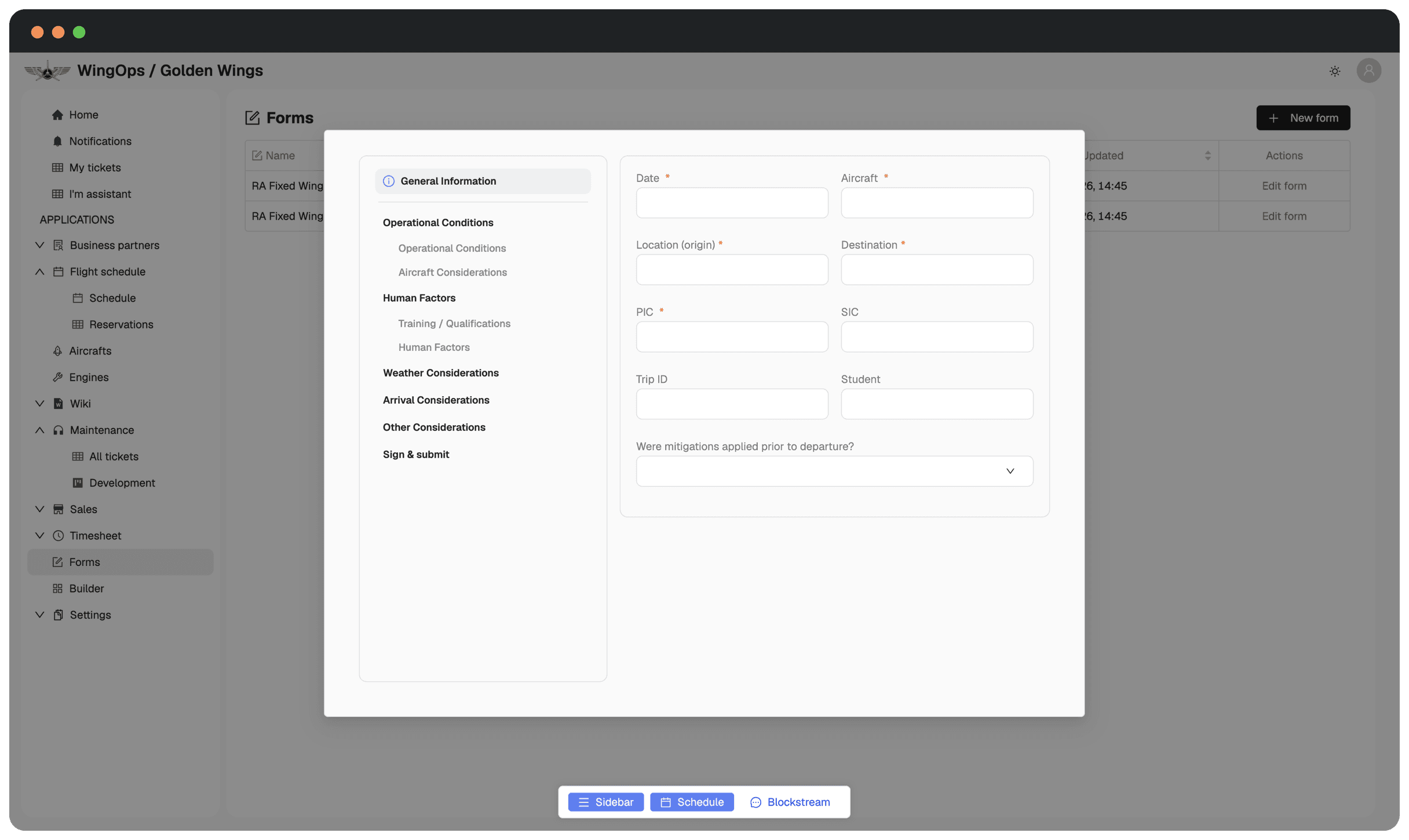
Risk assessments, debriefs, anything else your school signs. You add the sections, you write the questions, and you decide what has to be answered and what does not.
Every form you have built sits on one list, and it is yours to change at any moment. Nobody hands you a template to work around, and nobody has to be called when a question needs to change.
- Your sections, your questions
- Group them the way your school thinks. Operational conditions, human factors, weather, arrival, or something nobody else has.
- A form for anything you fly
- Every aircraft type gets the form it needs, including the next one you put on the line.
- Change it the day your procedure changes
- Edit the form and carry on. Every version is kept, and the record shows which one was signed.
Post-flight debrief
Land it, log it, done.
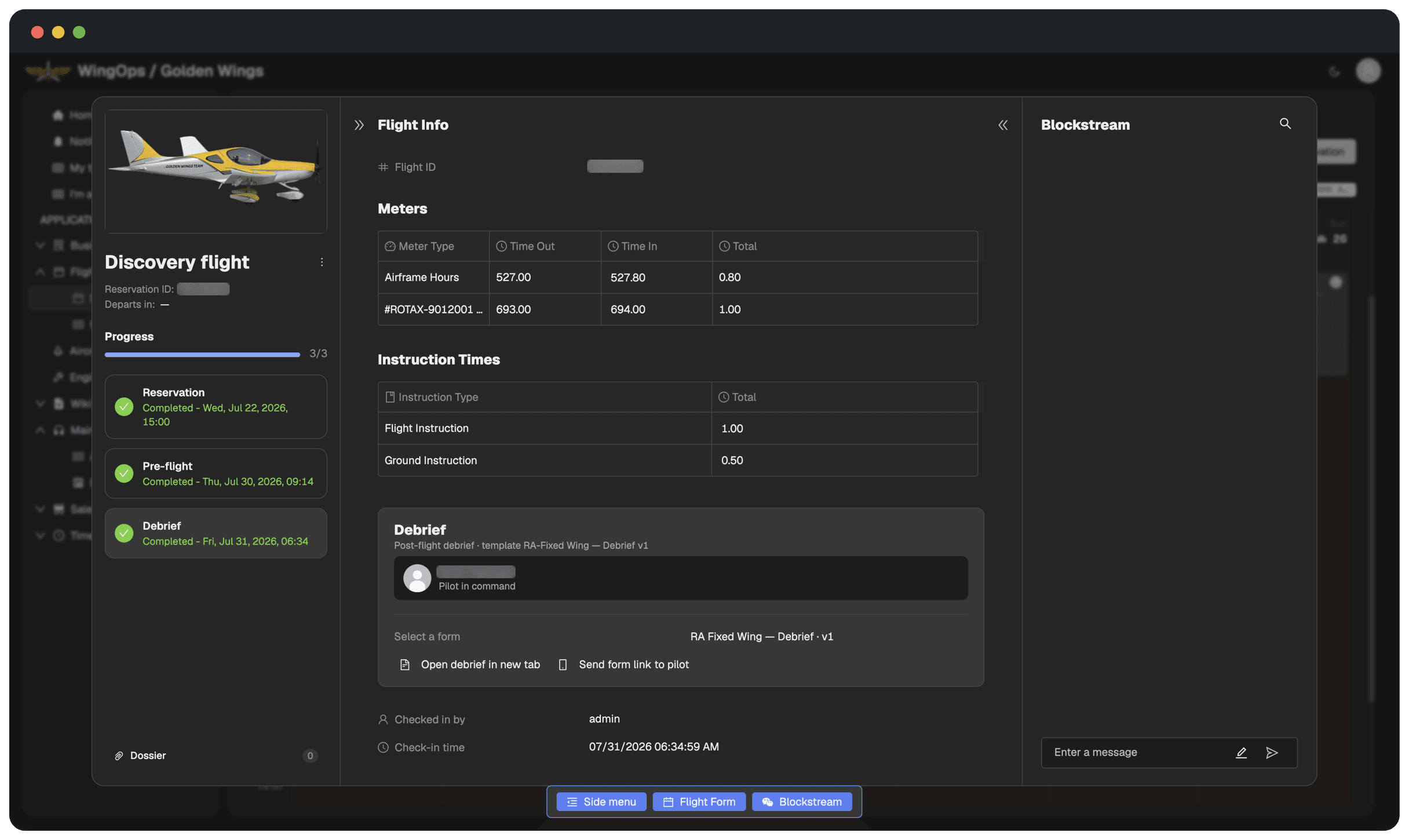
Most debriefs happen on the walk back to the office and nothing of them is written down. This one is written down while the flight is still fresh, and it stays on the flight it belongs to.
The hours are entered once and land in three places: on the aircraft, on the engine, and on your student’s training time. Nothing is written down twice.
- Written while it is fresh
- The debrief is filled in right after the flight, not written from memory days later.
- What was taught, what needs work
- Lesson outcomes, safety events and what to work on next, kept on the flight they came from.
- The hours are recorded once
- Airframe hours, engine hours and the instruction time your student flew, all off the same reading.
The case for one system
Four tools, or one. The same day of flying.
A normal week runs on four things at once: a scheduling app, a spreadsheet of hours, a folder of signed briefs and a form nobody can edit. Each one works. Together they are four places to look, four people to ask, and four chances for a flight to go unrecorded.
WingOps is the one. The reservation, the brief, the risk score and the hours are the same record, filled in while the day happens, not typed up on Friday.
WingOps Flight Tracker
Pick your aircraft
Pick it once, before you go.
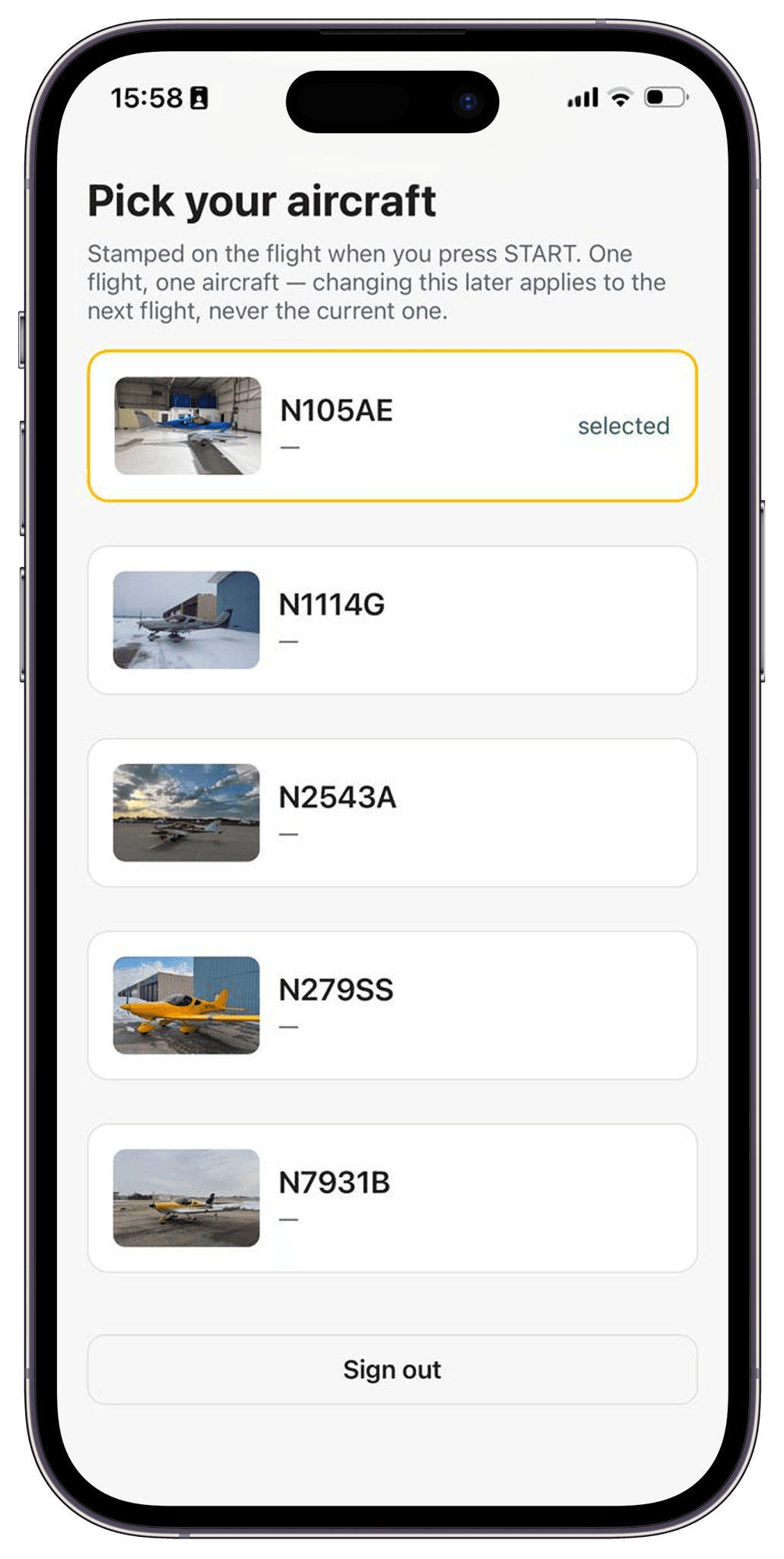
The aircraft is picked off the list before the flight, and it gets stamped on the record the moment START is pressed.
One flight, one aircraft. Changing it later applies to the next flight, never the current one, so the registration on the record is always the one that flew.
- Your whole fleet, with a photo
- Every aircraft on the line, by registration and photo. The one standing in front of you is picked, not the one that was meant to be booked.
- Stamped when the flight starts
- The aircraft is written on the flight at START and stays there. Nothing to correct afterwards, nothing to argue about.
- No hardware in the aircraft
- Nothing to bolt in, nothing to pair, no battery to replace. The phone the pilot already carries is the whole installation.
Start the flight
One tap and the flight is recording.
The pilot is picked the same way and stamped the same way. It is who flew, not whose phone it is.
Then one green button, and the flight keeps recording with the screen off or another app in front. Nobody has to hold the phone or keep it awake.
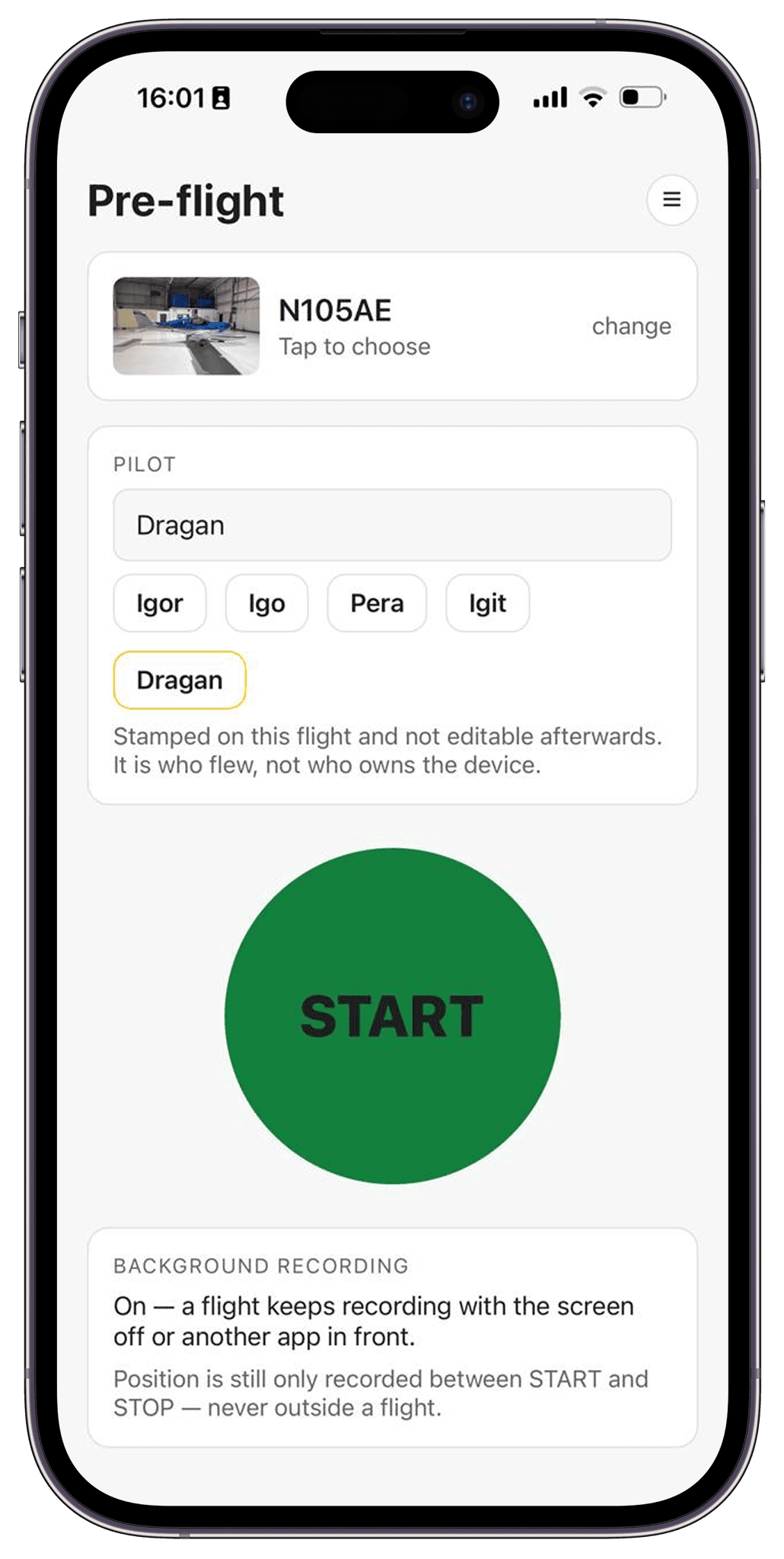
- Who flew is on the record
- The pilot is stamped on the flight and cannot be edited afterwards. The logbook and the record agree without anyone reconciling them.
- One button, nothing to set up
- No pairing, no calibration, no menu to go looking for. START before you taxi, STOP when you are back on the ramp.
- Recorded only between START and STOP
- Position is never recorded outside a flight. Your students are not followed on their day off, and you can tell them so.
After the flight
The track, and the numbers off it.
The flight comes back as a report: every circuit, from the first takeoff to the last landing.
Duration, distance, maximum altitude and maximum speed are read off that track, not remembered at the desk. The summary of what happened in the flight is written for you, down to how many of the landings were full stop.
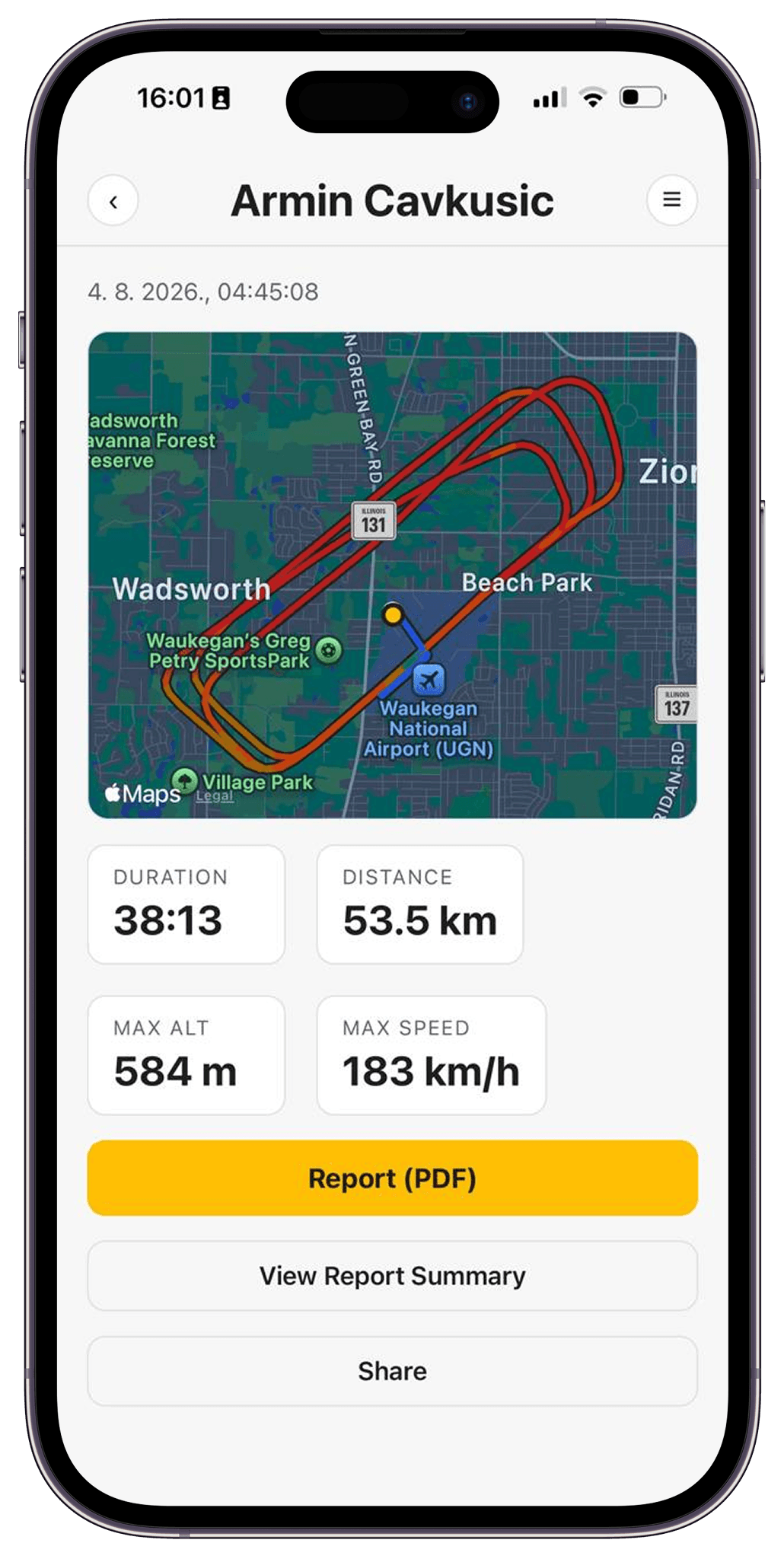
- Every circuit on the map
- The whole flight as one line over the field, so the debrief starts from what happened instead of from what somebody recalls.
- The numbers come off the track
- Duration, distance, maximum altitude and maximum speed, measured by the flight itself and not typed in from memory.
- Report as PDF, or shared
- One document off the flight, for your student, for the instructor or for the file. Sent straight from the phone.
Follow the flight
Follow the flight live, in 2D or in 3D.
From the moment the aircraft is airborne the flight can be opened on a phone or a computer, and it stays open for as long as the aircraft is up. Where it is, how high and how fast, changing while you watch. Nobody has to call the field to ask.
The 2D view paints speed onto the track and puts height and speed under the map. The 3D view puts you behind the aircraft or in the cockpit. The same two screens hold the flight after it lands, so the debrief stops being a description and becomes something you both watch.
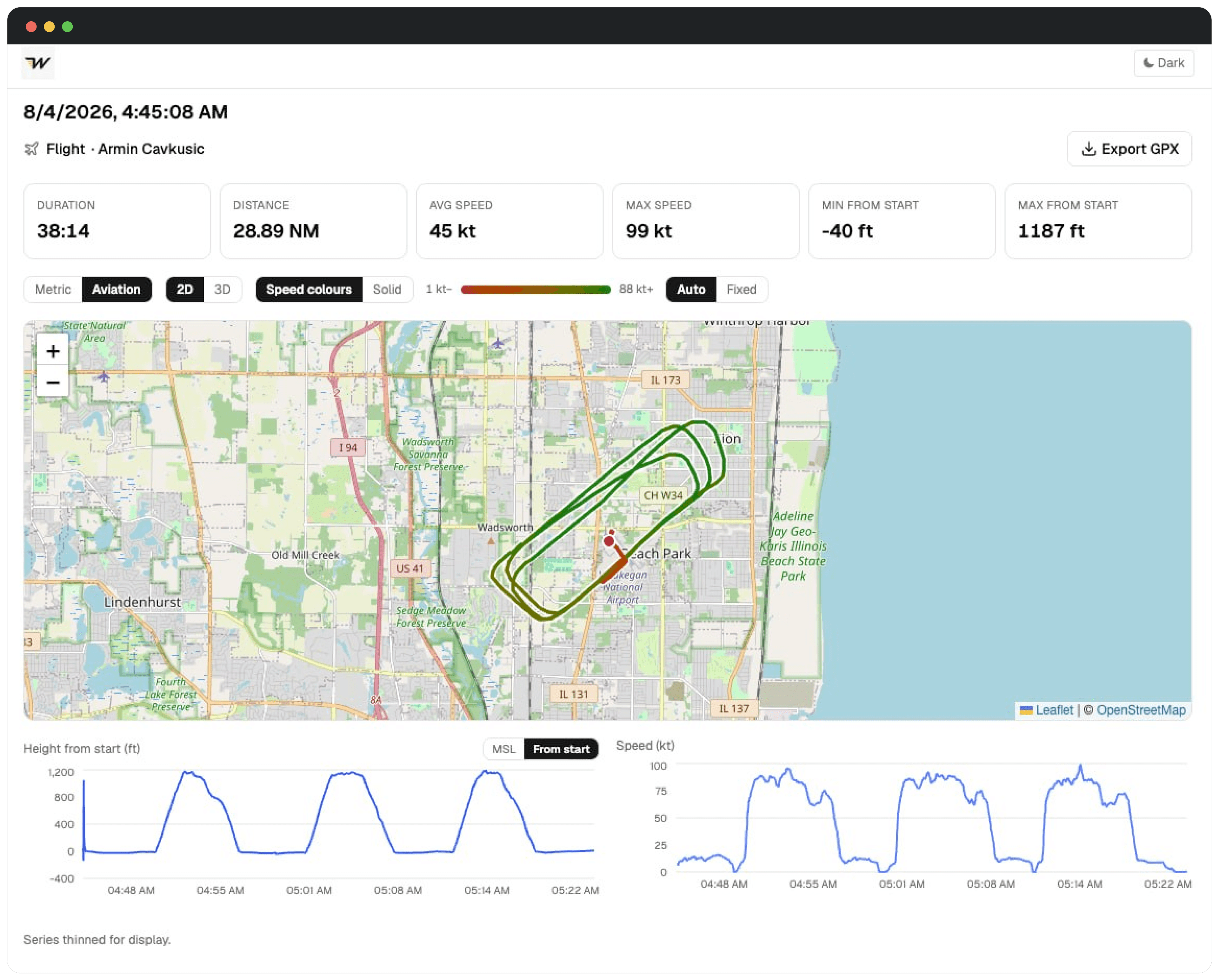
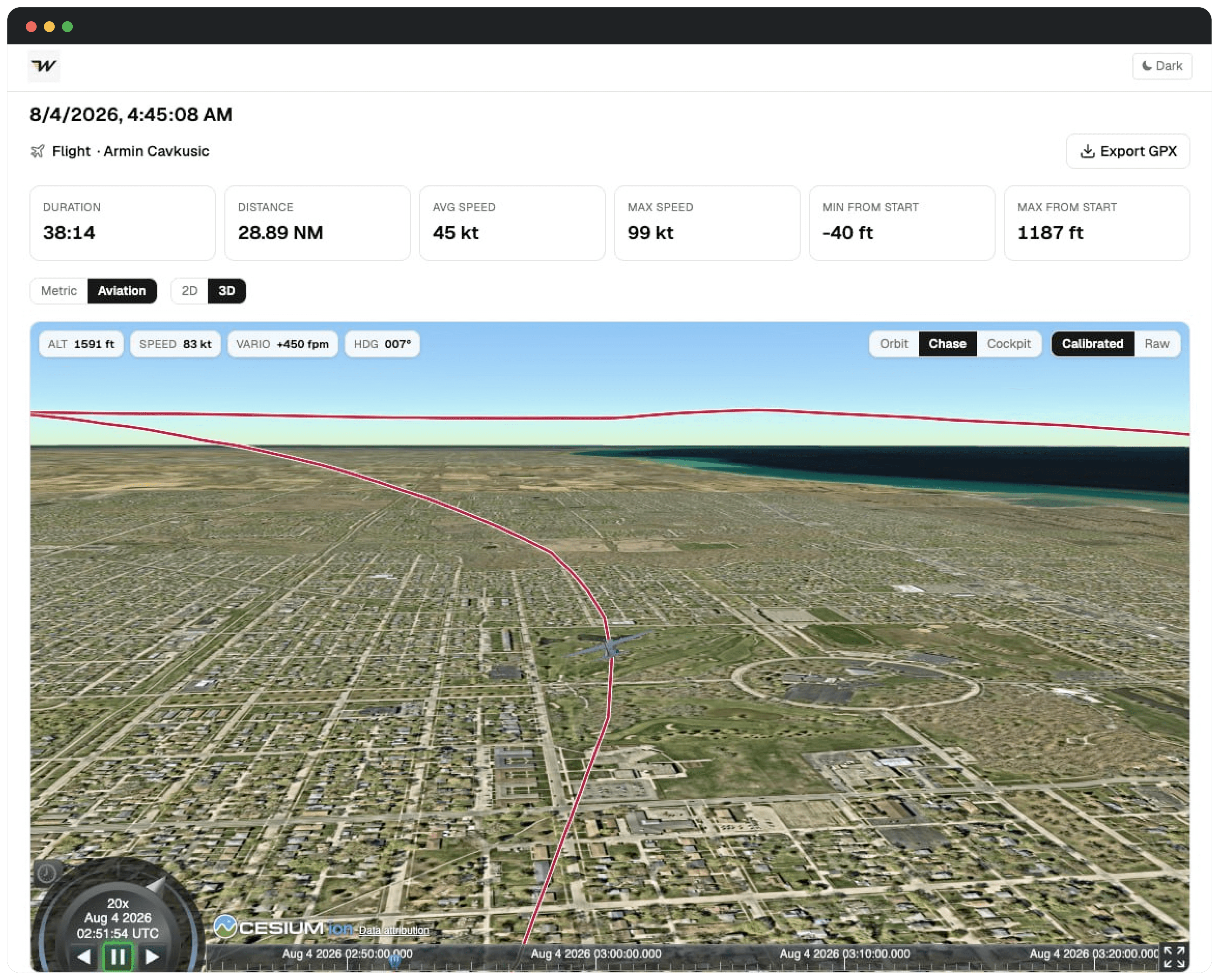
- Follow it while it is still up
- Open the flight on a phone or a computer the moment the aircraft is airborne, and watch it the whole way. Position, altitude and speed, changing as it flies.
- Speed is painted on the track
- The line runs from slow to fast in colour, with height and speed charted under the map, in aviation units or metric.
- Or sit behind the aircraft
- The 3D view orbits it, chases it, or puts you in the cockpit. The GPX comes out too, for anything you want to open elsewhere.
Ready to see it on your own flights?
We will walk through one flight your school actually flew, from the schedule to the signed debrief, and you tell us where it breaks. If WingOps is not a fit, we will say so.